Moving Tasks with Predecessors
This guide explains how to modify tasks that have predecessor dependencies in the Gantt chart.
Known Limitation
Tasks with predecessor dependencies cannot be moved by dragging, even though the UI may visually allow you to attempt it. This is a known visual limitation that we are working to resolve through a larger technology update.
If you've experienced confusion when trying to drag tasks on the Gantt chart, this is likely the cause.
How to Move Tasks with Predecessors
When you need to reschedule a task that has predecessors, use one of these methods:
Option 1: Remove the Predecessor First
Remove the dependency, then modify the task freely.
Method A: Double-click the dependency line
- Locate the arrow (line) connecting the predecessor task to your task
- Double-click the arrow
- Click the Delete button in the dialog
- Now drag the task or edit its dates directly

Method B: Clear the Predecessor column
- Find the Predecessor column in the task list (enable it via column menu if hidden)
- Click in the Predecessor cell for the task you want to modify
- Clear out the value in the cell
- Press Enter to save
- Now modify the task using drag or the task details

Option 2: Use Lag or Lead Time
Instead of moving the task directly, adjust the timing through the dependency itself.
Using the dependency dialog:
- Double-click the arrow representing the predecessor relationship
- Add lag time or lead time in the dialog:
- Lag: Adds days between the predecessor and your task (pushes the task out)
- Lead: Subtracts days, allowing overlap (pulls the task in)
- Save the changes

Example: Adding 3 days of lag to a Finish-to-Start dependency will push the task 3 business days later.
Option 3: Edit Predecessor Text (Recommended)
The most efficient method is editing the predecessor notation directly.
- Click in the Predecessor column for the task you want to adjust
- Modify the lag/lead time using
+or-:3FS+2= depends on Task 3, starts 2 days after it finishes (lag)3FS-1= depends on Task 3, starts 1 day before it finishes (lead)
- Press Enter to apply the change
If you exit the text area without pressing Enter, the change will not be applied.
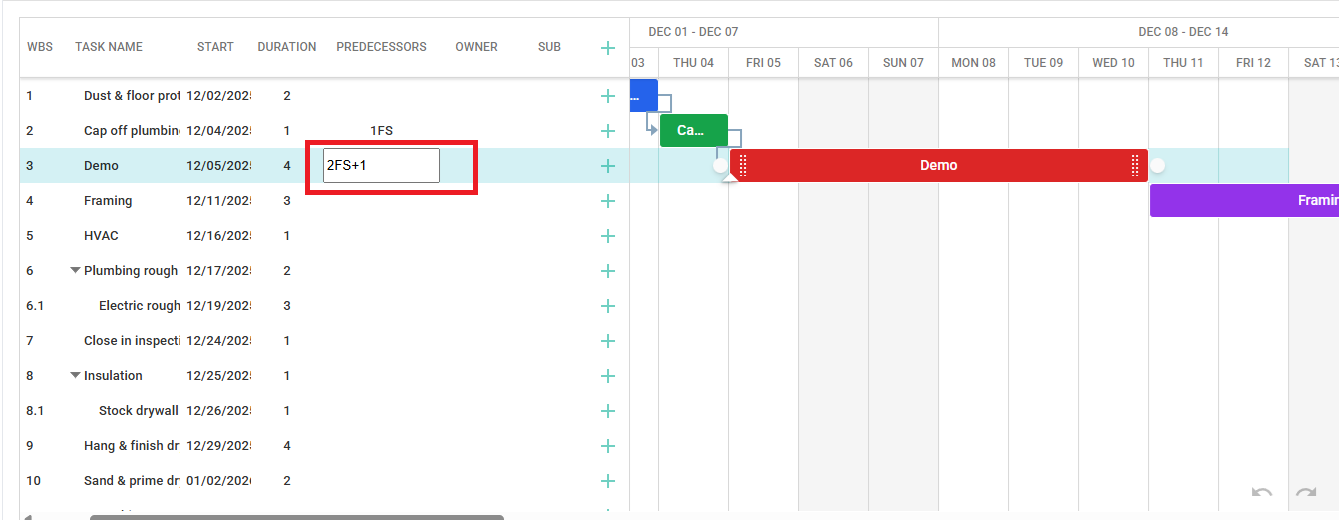
Example:
Original predecessor value: 2FS
To add 1 day of lag, change to: 2FS+1
The task will shift forward by 1 business day while maintaining the dependency relationship.

Which Method to Use
| Scenario | Recommended Method |
|---|---|
| Need to freely move the task | Remove predecessor first (Option 1) |
| Task should stay linked but shift timing | Use lag/lead time (Option 2 or 3) |
| Making multiple adjustments | Edit predecessor text (Option 3) |
| Need precise control | Edit predecessor text (Option 3) |
Best Practice
We recommend Option 3 (editing the Predecessor column text) as the primary method for modifying Gantt charts. It's faster, maintains dependency relationships, and gives you precise control over timing.
Future Improvements
We are currently working on replacing the Gantt chart technology to improve the drag-and-drop experience. Until then, these methods provide reliable ways to modify your schedules.
Related
- Dependencies - Understanding dependency types and notation
- Task Management - Creating and editing tasks
- Keyboard Shortcuts - Navigate efficiently